 LidLid
Support & getting started
Install, switch on, and take your work with you. Need a hand? Email us.
Email support kf953741@gmail.com
For help, feedback or privacy questions.
The LidLid main app
The Mac App Store version is being prepared for launch. Its store link will appear here when available. The DMG below is the free compatibility component and does not replace the LidLid main app.
Open-lid mode is always free. Try closed-lid mode free for 7 days, then unlock it for life for US$4.99. No subscription or automatic renewal. Trial expiry never interrupts a session already in progress.
Install and use
- Install LidLid.Get the main app from the Mac App Store. The store link will be available after launch.
- Set up once.Choose Set up free compatibility component in LidLid, follow its one-time setup, then claim your trial or unlock it for life.
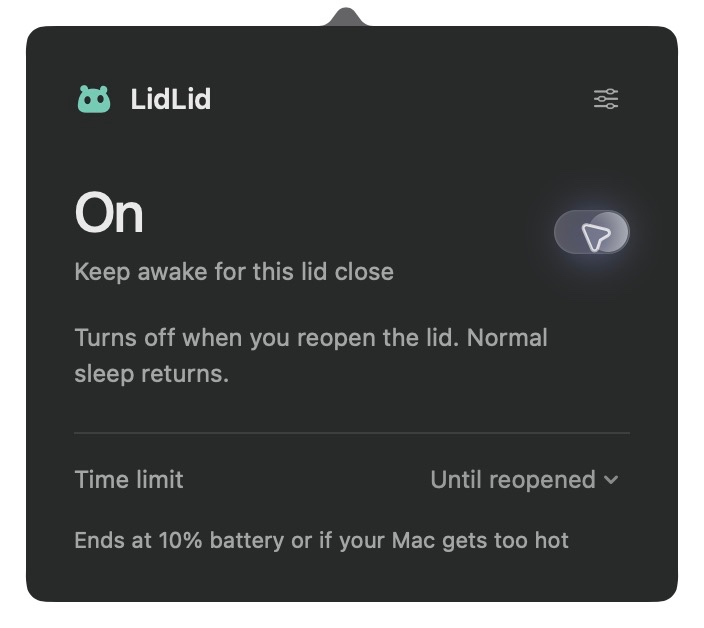
- Switch on. Close. Go.Start your task and turn on closed-lid mode. Wait for On. Reopening ends the session automatically.
Download the free compatibility component
For closed-lid work on battery without an external monitor, install the free component once. Download and install it below. LidLid detects when the component is ready. Open-lid mode works without it.
v1.0.1 · Apple Silicon MacBooks · macOS 14+ · Developer ID signed, Apple notarized
- Move to Applications.Open the DMG and drag LidLid Compatibility into Applications.
- Install its service.Open the component, choose Install service and follow the macOS prompts to approve its background activity.
- Return to LidLid.When you see Compatibility component ready, return to LidLid, claim the trial or unlock it for life, then turn on closed-lid mode.
To remove it, turn off closed-lid mode in LidLid, open the component and choose Restore sleep & remove service. You can then delete the component. Turn closed-lid mode off before choosing Sleep as well.
Your first system confirmation
The free compatibility app is Developer ID signed and notarized by Apple. When installing its service, confirm with Touch ID or an administrator password only in the macOS system dialog. LidLid never collects your password.
A few good questions.
Can I keep my Mac awake with the lid open?
Turn on the independent open-lid switch. It is always free and needs no compatibility component. Your display can still sleep. The mode pauses on lid close or manual sleep, resumes after reopening and wake, and turns off when you quit.
How do I change the language?
Open Options → Language and select English, 简体中文 or System default. The interface changes immediately.
Does it detect when my task finishes?
LidLid does not read AI conversations or automatically detect task completion. Reopening, manual off, the selected time limit or a protection condition ends the session.
Why did my task stop anyway?
Check that LidLid showed On, no external display was connected, and no battery or thermal condition ended the session. Tasks may still need an internet connection or your approval. Changing Wi-Fi networks or VPNs can also interrupt connections.
What should I include in a report?
Share your MacBook model, macOS version, LidLid version and the steps that caused the issue. Redact personal information in screenshots. Do not upload code, AI conversations, keys or other sensitive content.
Online tasks still need a connection.
Read the privacy policy